Sales Enablement
Overview
With Two-Way Email Sync, sales people can send emails to Prospects from within Lead Liaison from their own email inbox. Because we connect directly to their inbox, sales people can also see their historical messages to the Prospect, when the Prospect has read the message, and the Prospect's replies. Lead Liaison can sync emails from almost any service, including Google, Yahoo, Outlook, and Apple Mail. This article details setting up users, creating email Templates and Snippets, and sending and scheduling emails.
Sales Enablement's Two-Way Email Sync is different from Lead Liaison's Send and Track plugin for Outlook and Google Chrome. While that service will let you track opens and email clicks, Two-Way Email Sync lets users compose messages from within Lead Liaison, and saves the message plus its replies to the Prospect's Timeline.
Getting Started
Before you set up your user accounts, make sure that you have Lead Liaison configured for your organization. To find your email sync settings, navigate to Settings > App Setup > Email > Sales Enablement.
Whitelisting (for Accounts using G-Suite)
If you're using Google Services for email (Gmail / G-Suite) then you must whitelist Lead Liaison as an app within your G-Suite account. Follow the video and/or written instructions below to whitelist Lead Liaison's app:
Instructions:
- Click Step 2 of Google's whitelist instructions.
- Go to G-Suite Admin Console.
- Go to Security > API Permissions.
- At the bottom of the list of apps, click the Trusted Apps link.
- Click the Whitelist an App plus symbol.
- Select Web applications.
- Enter the OAuth2 Client ID: 745383167844-2n34daua2cggaa5d0mjfdk2drloh936u.apps.googleusercontent.com
Failure to whitelist Lead Liaison will result in a warning prompt as shown below when users try to connect their email account.
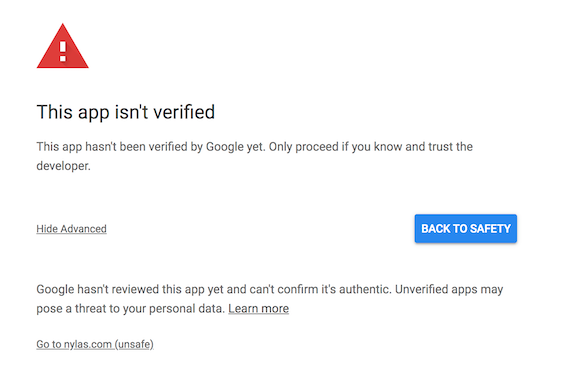
If users continue to see this message after you have followed the Whitelisting guide, please contact support@leadliaison.com.
Microsoft Office 365 Admin Approval
While authenticating, your account may return the following response from Microsoft:
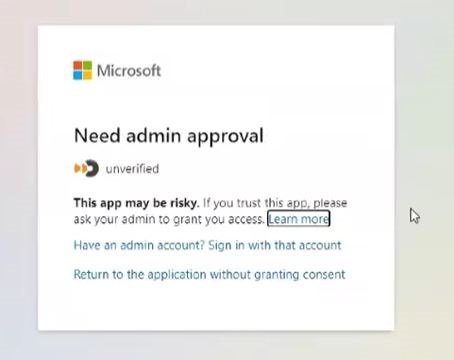
This prompt occurs because of the account's security settings from the mail administrator. To resolve this, an Administrator needs to configure user consent settings in Outlook.
Information provided in these resources would help:
Managing user consent to apps in Microsoft 365
Microsoft Office 365 Admin Approval
Excluded Domains
You can exclude domains from Two-Way Email Sync, keeping emails to or from those domains from being shown in the Prospect Profile. By default, Lead Liaison will exclude your organization's domain.
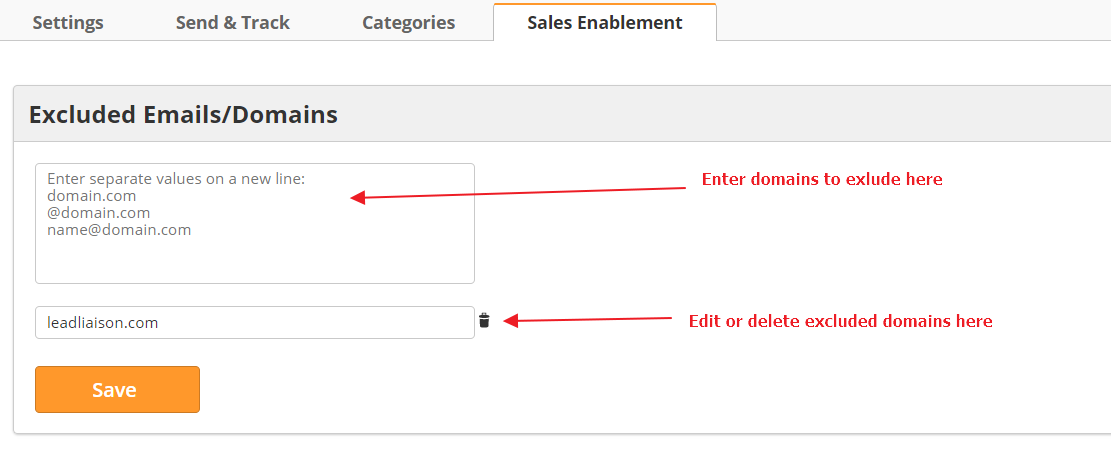
Use the box to enter domains you would like to exclude. Enter each domain on a new line. Use any of the following formats to exclude a domain:
- domain.com
- @domain.com
- name@domain.com
Once you have entered your excluded domains, click the orange Save button.
Excluded domains appear beneath the box. Edit a domain by clicking on its text, or use the trash can icon to the right to delete the domain. Once you delete a domain, the system will sync emails from prospects with that domain.
Email Accounts
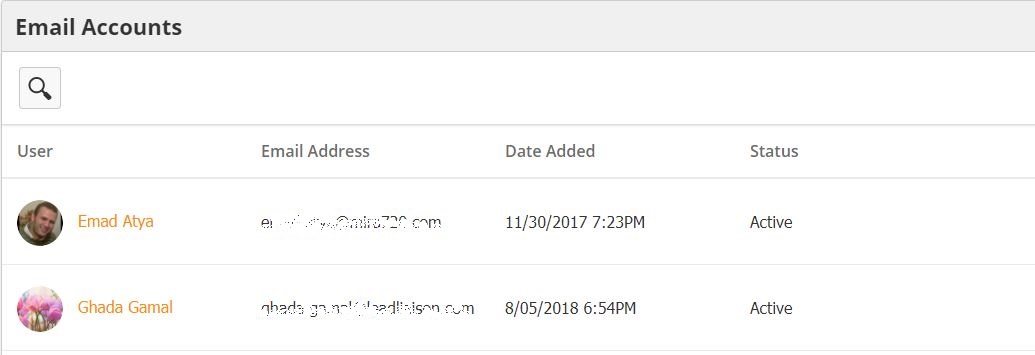
Use the Email Accounts box to view synced email accounts. The box will show the synced user, their email address, and the date they were added.
Disconnecting
If you need to disconnect an email account, please contact support@leadliaison.com.
Security Profiles
You can control the user's level of access through their Security Profile. To make changes to Security Profiles
- Navigate to Settings > Users > Security Profiles
- Click the Edit button to the right of the appropriate profile.
- Scroll down to Sales Enablement
- Check the boxes to grant permissions
OR - Uncheck the boxes to remove permissions
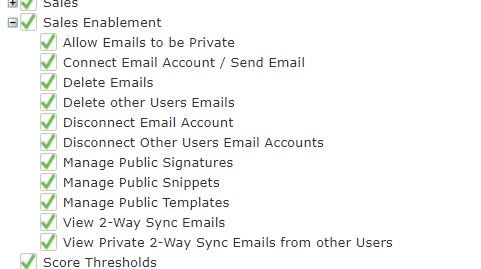
After changing visibility permissions (such as viewing private two-way sync emails), you may need to log out and back in for the changes to take affect.
Managing Email Accounts
Email accounts are managed at the individual-user level. This is to protect the user's personal email password. Users can add their account and manage their account's settings in the 3rd Party tab of the Personal Settings menu.
Account Activation
To activate a Two-Way Sync Email account, you will need the user to log in to Lead Liaison. They will need their email client's username and password. You will also need to make sure your Lead Liaison account has a Sales Enablement license for each user you would like to sync. To add more licenses, contact your Lead Liaison representative.
To activate an email account
- Navigate to Personal Settings
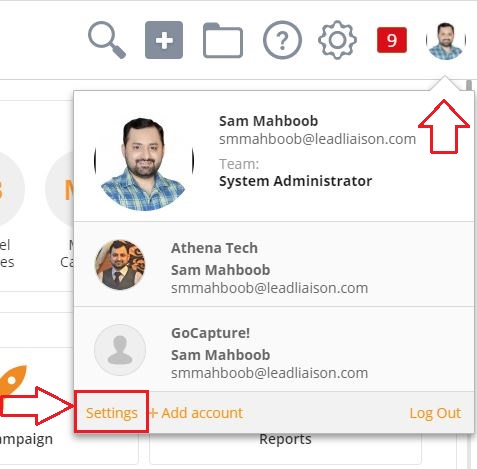
- Click the 3rd Party tab
- Enter your email address in the Email Account box
- Click Connect
- Follow your email provider's instructions to grant Lead Liaison access to your account
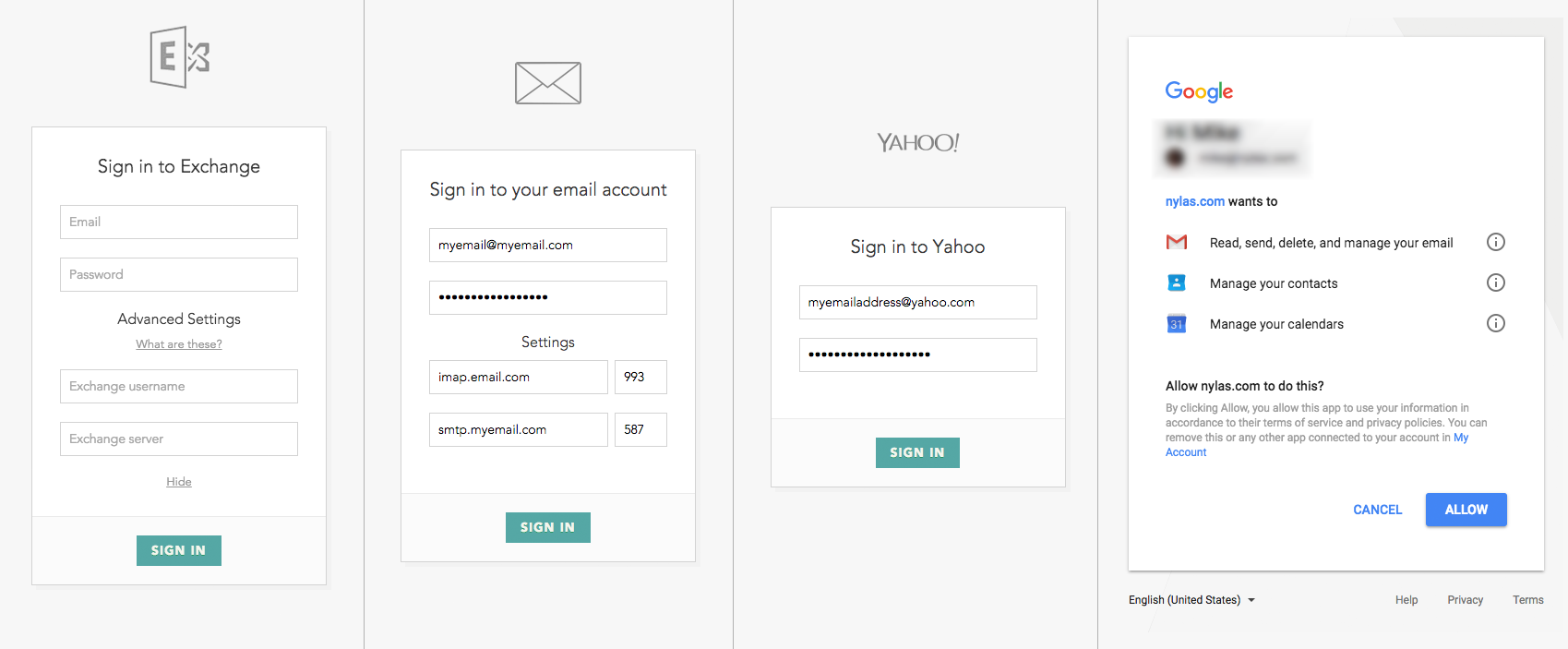
Use the Connect button as your default. Use the Connect (Advanced) option only if you do not see the right email provider to authenticate with for some reason.

Similarly, if you're already connected and need to reauthenticate, use the Re-Authenticate (Advanced) option only if the standard Authenticate option doesn't show you the correct email provider.

Use the “Resync” button to re-initiate the email sync based on your original settings when you initially connected your email account. The Resync option is useful if you notice any missing data after reauthenticating your email.
Some Exchange users may have to enter their server information manually depending on their security settings.
Known Supported Providers
Lead Liaison supports a variety of providers for Two-Way Sync Email accounts. Below is a list of known supported providers, though other providers are supported as well.
| Known Supported Providers |
|---|
| Gmail/Google Mail/G Suite |
| Microsoft Exchange and Microsoft Office 365 |
| Outlook.com/Hotmail |
| Yahoo! Mail |
| iCloud |
| AOL Mail |
| FastMail |
| GandiMail |
| Mail.ru |
| GoDaddy Mail |
| QQ Mail |
| GMX |
Even if you don't see your provider, we can still sync to most services using custom syncing via generic IMAP. If you have any issues setting up your account, contact support@leadliaison.com.
When connecting through a Microsoft account, make sure Active Sync is enabled for each user connecting through Sales Enablement. If your organization uses a Mobile Device Management (MDM) policy, reach out to your email server administrator to make sure the Nylas engine is allowed and not quarantined for Active Sync. The device name starts with "python-eas."
If your Microsoft account uses 2-Factor Authentication or Multi-Factor Authentication, you may need to create an App Password to log in through Sales Enablement.
Email Account Settings
Once you have connected your email account, you can choose the time period you want the system to start syncing from:
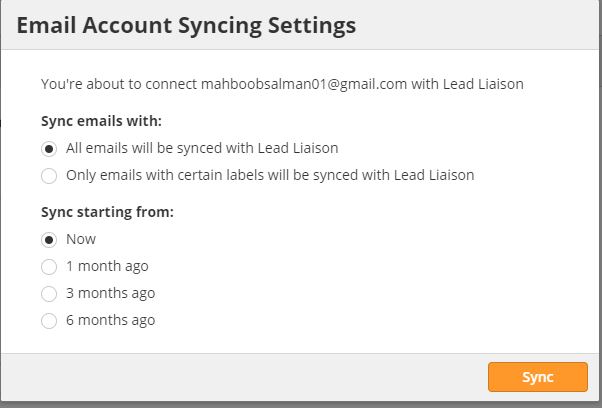
You can also edit your personal account settings.
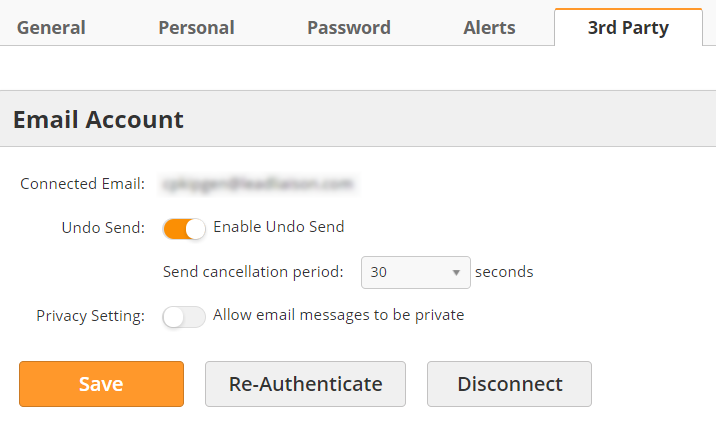
- Undo Send – when this option is enabled, you will have a set amount of time to cancel an email after you hit the Send button before it is sent to the Prospect
- Privacy Setting – when this option is enabled, emails from this account can be marked private; private email chains are only viewable by the account user and users with the appropriate Security Profile permissions
- Re-Authenticate – re-authenitcate the account with your email provider; required periodically by some providers
Email aliases
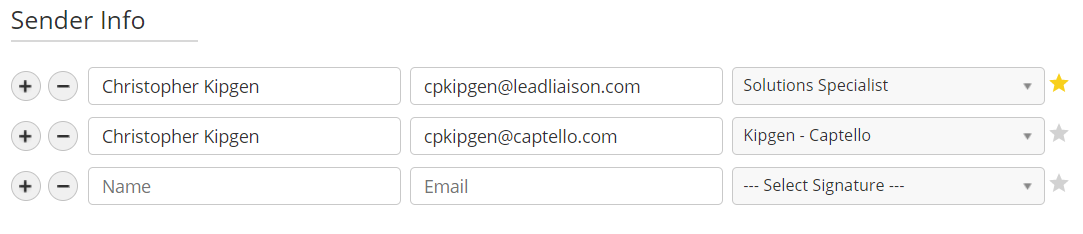
If you have an alias on your email account, you can add it as another sender in Lead Liaison. To add our alias, navigate to Personal Settings > 3rd Party and scroll down to sender info. You can add/remove aliases from this menu and use the star icon to set your default.
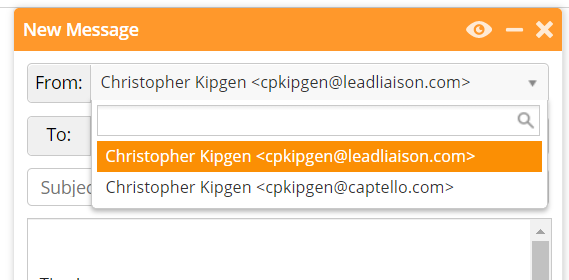
To swap emails when sending, use the drop-down menu in to From: field.
Note: if you add an email address that is not a valid alias on your connected account, the email sending action will fail. If you receive a failure notification, check your account first to see if it is set up properly and can send from the alias.
Removing Email Accounts
If for some reason you need to remove an email account, make a request with your Lead Liaison Representative to disconnect your email account by opening a support ticket. This cannot be done by you from the Admin Panel, it must be done by Lead Liaison Support from the backend system.
Reviewing Connected Accounts
Administrators can review current and former connected accounts from the admin panel. To access the list,
- Navigate to Settings > App Setup > Email
- Click the Sales Enablement tab
- Scroll down to Email Accounts
From here, you can see the user, the email address connected, the date they were added, and their status. The table below explains each status.
| Status | Definition | Action Required |
|---|---|---|
| Active | User is connected and ready to email | None |
| Stopped | User is connected but Lead Liaison is no longer able to access their account. Typically due to a password change. | The must re-authenticate using current credentials. |
| User Deleted | User's email account was disconnected from Lead Liaison | The user will need to add their email again. |
Managing Signatures
Users can create multiple signatures to use in outbound emails. This is perfect for users who wear multiple hats and may want to approach different types of emails in different ways. For example, a user might use one signature when prospecting, and another signature for existing clients.
New Signatures
To create a new signature
- Navigate to Personal Settings
- Click the Personal tab
- Scroll down to the Signatures box
- Click the green New button
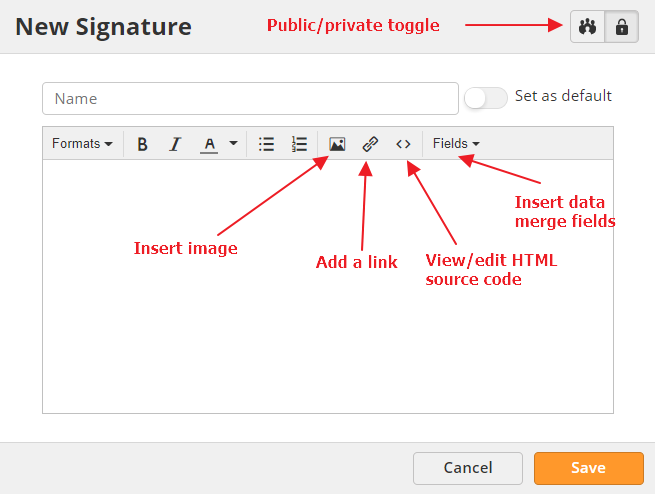
- Give the signature a name
- Toggle whether or not it should be your default signature
- Compose your signature
- Click the organge Save button
You may already use a signature you'd like to copy from your existing email client. When doing this, we recommend you copy the HTML directly from your email client and pasting it using the Source Code button in our editor. Using the HTML will make the most accurate copy possible. If you choose to copy and paste the signature itself instead of the HTML, we recommend testing it before you send emails to any Prospects.
Data Merge Fields
Like in other areas, Lead Liaison supports data merge fields for signatures. In addition to the normal prospect, owner, event, and common fields, you can use special user merge fields exclusive to signatures. User merge fields pull information from the user's profile of the user sending an email. The table below identifies the unique fields, their field ID, and the data they merge.
| Field Name | Field ID | Data |
|---|---|---|
| Full Name | %%user_fullname%% | User's first and last names |
| First Name | %%user_firstname%% | User's first name |
| Last Name | %%user_lastname%% | User's last name |
| User Name | %%user_username%% | User's Lead Liaison username |
| User Email | %%user_email%% | User's email |
| Title | %%user_title%% | User's job title |
| Phone | %%user_phone%% | User's phone number |
| Main Phone | %%user_mainphone%% | User's main phone number |
| Main Phone Extension | %%user_mainphoneext%% | User's extension |
| Mobile Phone | %%user_mobilephone%% | User's mobile number |
| Toll Phone | %%user_tollphone%% | User's toll phone |
| Toll Phone Extentsion | %%user_tollphoneext%% | User's toll extension |
| Company City | %%user_companycity%% | Company's city |
| Company Full Address | %%user_companyfulladdress%% | Company's full address |
| Company Post Code | %%user_companyzipcode%% | Company's zip/postal code |
| Company State/Province | %%user_companystate%% | Company's state/province |
| Company Direct Phone | %%user_directphone%% | Company's phone number |
All user merge fields pull data from the user profile. This means that user_company fields will show data as it appears on the user profile, not as it appears in your Lead Liaison global settings. If something doesn't look right on a signature using merge fields, check the user profile first.
Existing Signatures
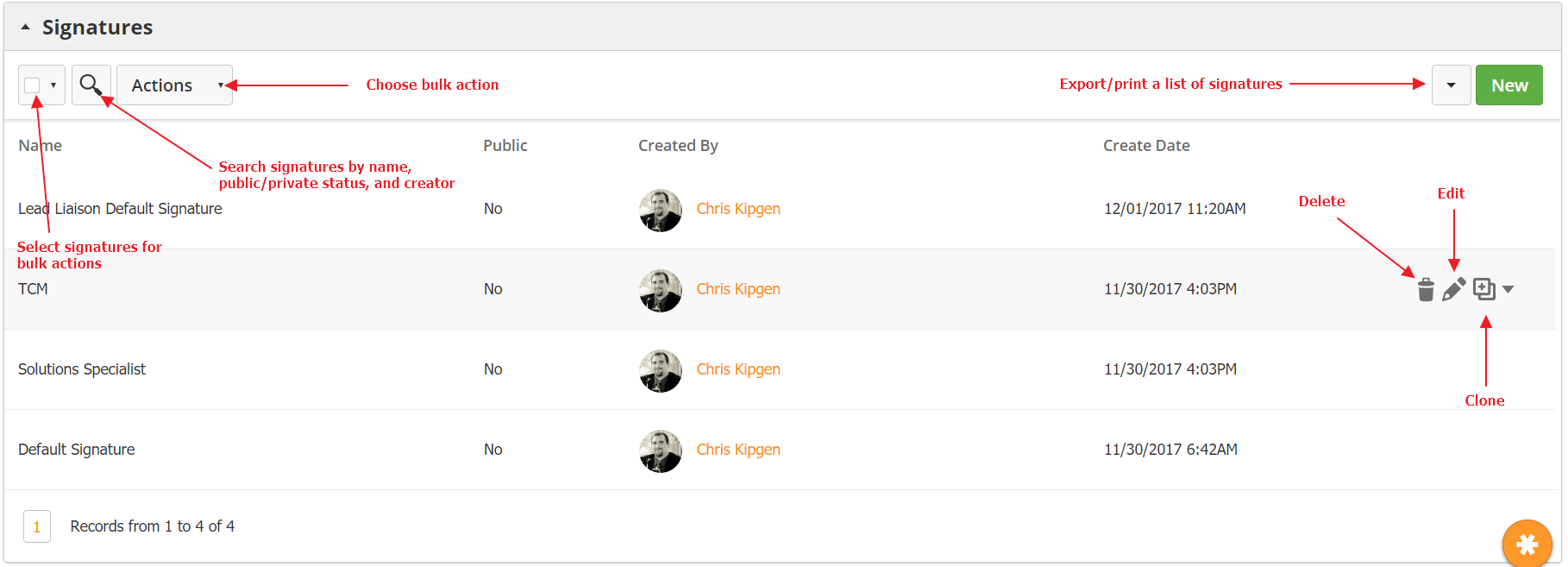
You can edit, delete, or clone signatures from the Personal tab in Personal Settings. Hover your mouse over the signature you would like to manage to access the action menu to the far right. From this screen, you can also search through your signatures or export/print a list of signatures.
Composing an Email
To compose an email, navigate to a Prospect Profile and click on the Email tab in the Action Bar.
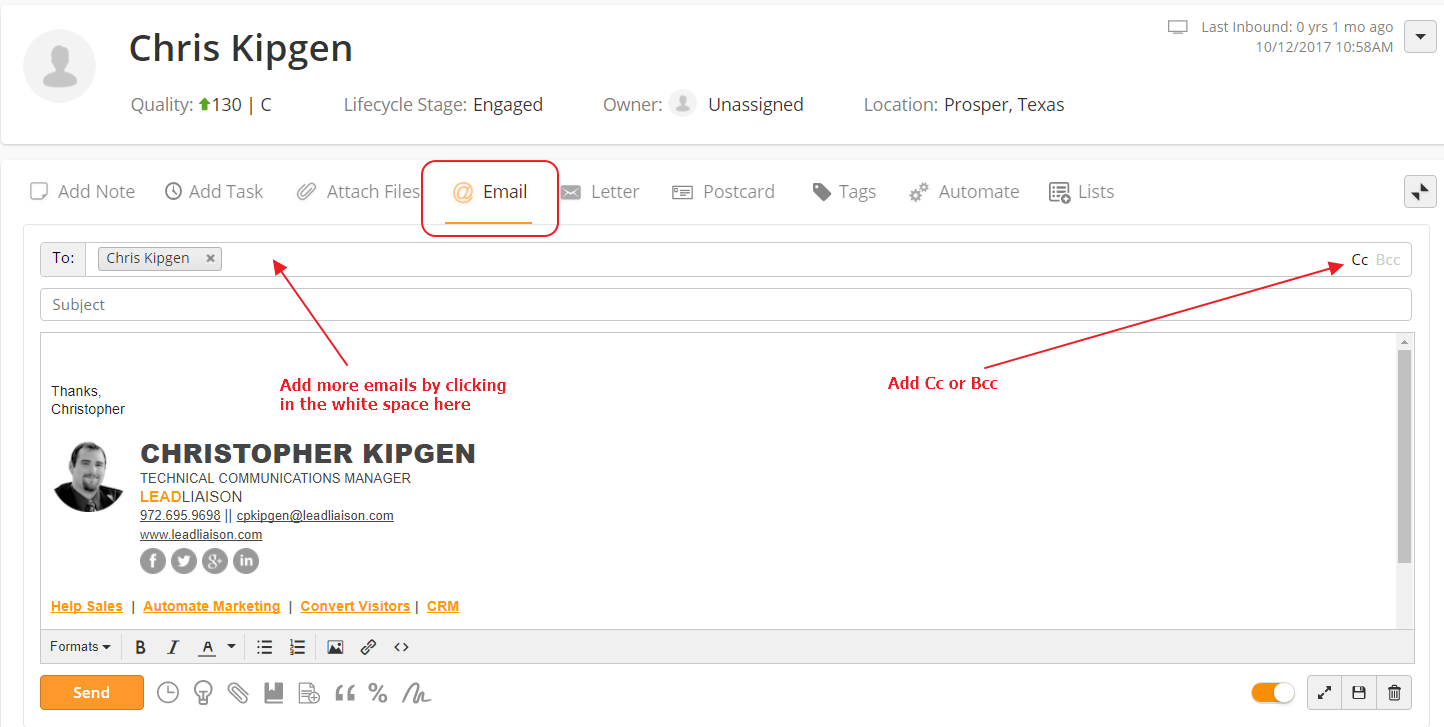
By default, the Prospect's email will be in the To field. Add more recipients by clicking in To, Cc, or Bcc and searching for a Prospect by name or entering the email address directly.
When typing a subject, you can use merge fields to personalize your message. For example, you could use the merge field %%firstname%% to have the system automatically insert the Prospect's first name.
Once you have finished composing your message, send it by clicking the orange Send button. You can also save the email as a draft by clicking the Save button in the lower right, or discard the email by clicking on the trash can icon.
Scheduled Emails
You can compose an email and schedule it to send in the future. For example, you might have a Prospect ask you to contact them again in a week. You could write the email now and schedule to send on the appropriate day.
To schedule an email, click on the clock icon in the lower-left corner of the email compose window.
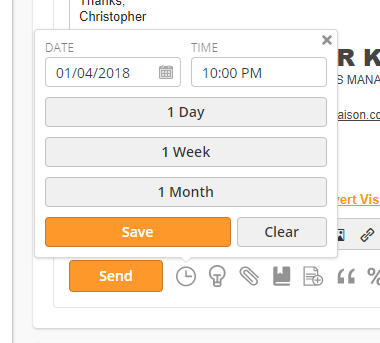
Schedule the email for a specific date and time, or use our quick options to schedule the email out one day, one week, or one month. Click the orange Save button to set the scheduled date, or the grey Clear button to remove the scheduling.
Email Reminders
You can set a reminder to alert you if a Prospect has not responded to your email. For example, you might send a proposal over to a Prospect, and then set a reminder to follow up on that email if the Prospect has not responded within 3 days.
To set a Reminder, click on the lightbulb icon in the lower-left corner of the email compose window.
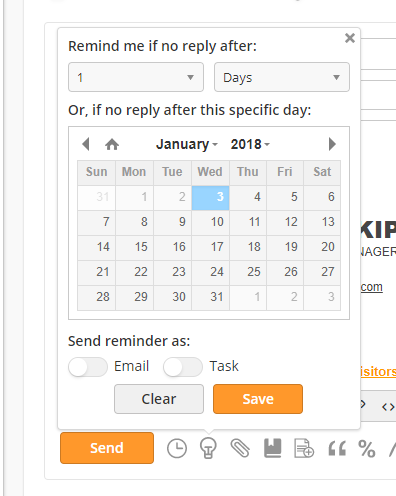
Set the number of days/months/years before the system sends the reminder, or choose a specific date. The system can send the reminder to your email, or it can create an email Task in OneFocus™ CRM, or do both. Click the orange Save button to set the reminder, or the grey Clear button to remove the reminder.
The system will monitor the email for any replies from the Prospect. If the Prospect has not replied by your reminder date, the system will send the email or create the task. If the Prospect has replied, the system will take no action.
Attach Files
Attach files to your email by clicking on the paperclip icon in the lower-left corner of the email compose window.
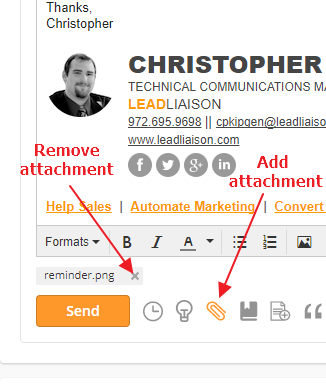
Attachments will appear in the lower-left corner of the email compose window, just above the Send button. To remove an attachment, simply click on the "x" next to the attachment.
While Lead Liaison will not enforce an attachment limit, your email provider might. Check with your provider to learn your limitations with the number of files and sizes.
Trackable Content
To add a download link to your Trackable Content in an email, click on the book icon in the lower-left corner of the email compose window.
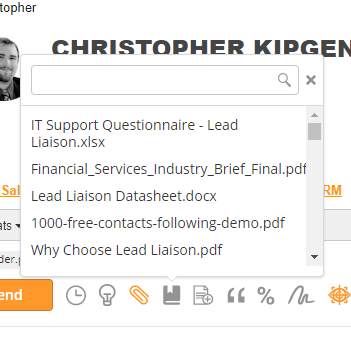
Scroll through the list or filter your content by name using the search box at the top of the pop up. After you select your content, the system will insert a link to that piece of content into your email.
Templates
Create an email from a Template by clicking on the paper icon in the lower-left corner of the email compose window.
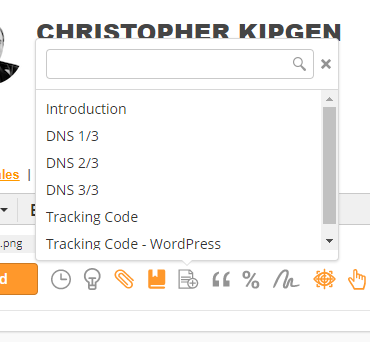
Scroll through the list or filter your Templates by name using the search bar at the top of the pop up. After you have selected your Template, continue editing using the main compose window.
When you add a Template, everything currently in the compose window, including your signature, will be cleared out in favor of what is on the Template. Make sure you edit the email after adding the Template or you might lose your work. If your Template does not have a signature or it has the wrong signature, use the signature element shown below to add the correct one back in.
Snippets
Snippets are words, phrases, or paragraphs you commonly use. For example, you might customize the intro to every Prospect to show you have done your research on their company. You could then use a Snippet for your main body paragraph that has the general information you send to everyone. Unlike adding a Template, adding a Snippet will not clear the content in the compose window.
To add a snippet, click on the quotation mark icon in the lower-left corner of the email compose window.
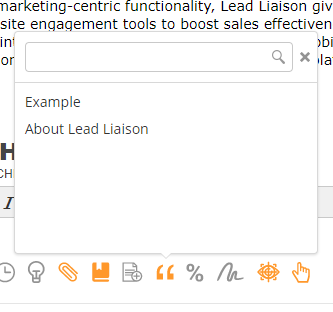
Scroll through the list or filter your Snippets by name using the search bar at the top of the pop up. The system will insert the Snippet at the cursor location in the email compose window.
Merge Fields
Insert a merge field by clicking on the percent icon in the lower-left corner of the email compose window.
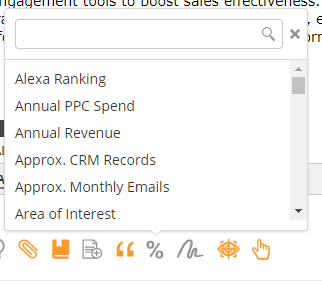
Scroll through the list or filter the merge fields by name using the search bar at the top of the pop up. The system will insert the merge field at the cursor location in the email compose window.
If the Prospect's Profile does not have any data for the merge field, it will appear blank on the email. You can add a default value that tells the system what to add in case there is no data. To add a default value, append ":default=[value]" to the merge field before the closing percentage marks. For example, the merge field "%%company:default=your company%%" would insert the words "your company" in the field if we do not know the Prospect's company.
Signatures
Change your signature by selecting the signature squiggle icon in the lower-left corner of the email compose window.
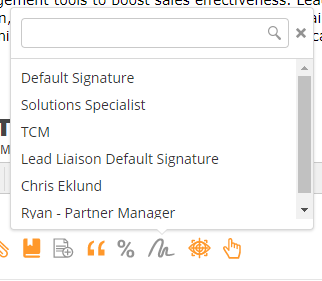
Scroll through the list or filter your signatures by name using the search bar at the top of the pop up. The system will add the signature to the end of your email. If the email already has a signature, the system will replace it with the new selection.
Tracking Options
You can set whether an email's opens and link clicks are tracked by toggling the icons in the lower-left corner of the email compose window.
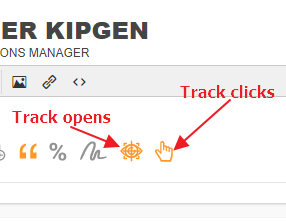
When the icons are orange, tracking is on; when grey, tracking is off. Even if opens and clicks are not tracked, the email will still appear in the Prospect's Timeline unless the email is marked as private.
Private/Public Toggle
Use the toggle in the lower-right corner of the email compose window to switch between public and private emails.
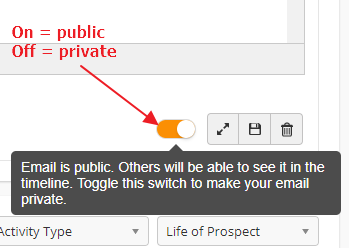
Public emails appear in the Prospect's Timeline and are viewable to all users. Private emails will only appear in the Timeline for the sending user and users with the prosper Security Profile (by default, only admin-level users, but your organization may change this).
Pop-Out Compose Window
Use the pop-out compose email to work on messages as you navigate to other pages in Lead Liaison. Top open a pop-out compose window, click on the pop-out button in the lower-right corner of the compose window.
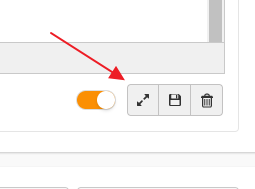
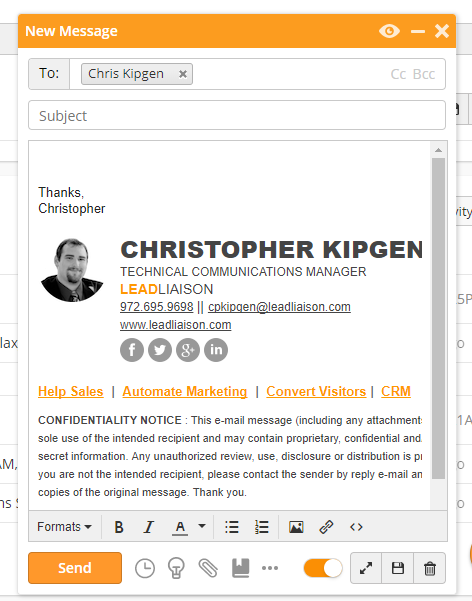
If you click the pop-out button again, the system will open another compose window. You can have as many pop-out compose windows open as you would like. The windows have the same options as the main email compose window in the Prospect Profile.
Email Preview
You can preview your email with merge fields used by clicking on the eye icon in the top-right corner of a pop-out compose window.
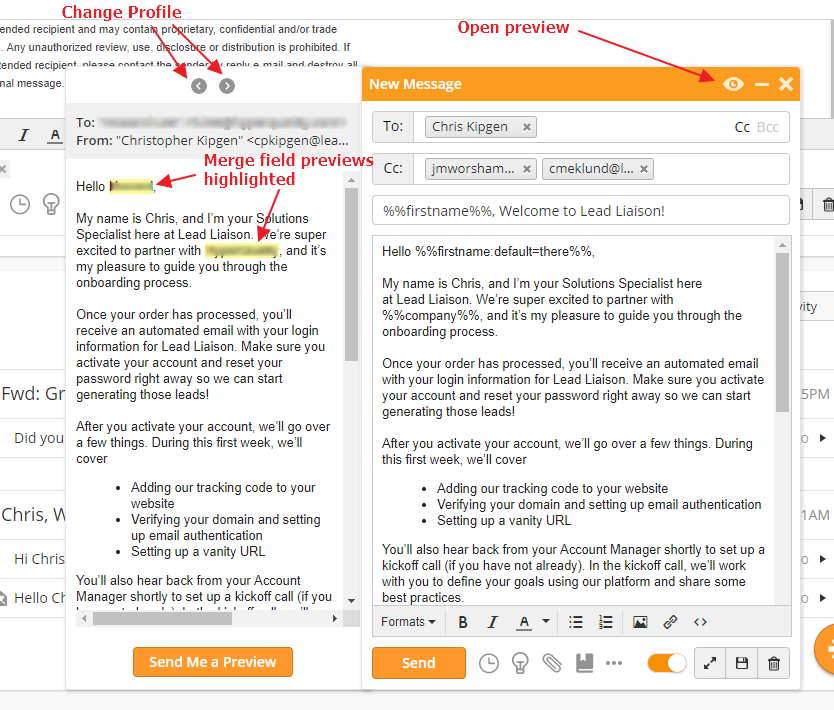
The system will show you the email with merge fields highlighted. To fill out the merge fields, the system will select 10 Prospect Profiles. You can scroll through the Profiles with the arrows at the top of the preview to make sure everything is working correctly.
Click the orange Send Me a Preview button to send a preview to your email address. The emailed preview will not use merge fields.

© 2021 Lead Liaison, LLC. All rights reserved.
13101 Preston Road Ste 110 – 159 Dallas, TX 75240 | T 888.895.3237 | F 630.566.8107 www.leadliaison.com | Privacy Policy